


1. Introduction (please read, it's important)
This guide includes preconfigured scenes that can be used by people who have at least two monitors and the main one operates on 1920x1080 resolution, as well as the package of layouts, that can be used and set up from scratch - you can find them here.
The scenes are compatible with OBS Studio (tested on 0.16.4 64 & 32 bit version). You can get the latest stable version here (select "Full Installer" option).
I recommend using OBS Studio even if you are not going to use the more advanced options and you will set up everything from scratch by yourself. This is the more stable version of the software, which is still being developed and updated on daily basis.
Please also note, that if you plan on using a setup with webcam - it requires more resources, so if you are using a very old PC or not too powerful laptop, then it might start lagging and you will drop frames.
Most sizes where prepared using PokerStars tables as examples, but other poker rooms have similar table sizes.
For using the preconfigured scenes, you have to have tables in tile (CTRL+9 on PokerStars).
All preconfigured setups are in 4 options (with exceptions - layouts that do not offer webcams at all) to choose from:
- Primary monitor with webcam
- Secondary monitor with webcam
- Primary monitor without webcam
- Secondary monitor without webcam
...and two languages: English (EN), Polish (PL).
Chat is integrated if you are using preconfigured setups.
2. Installation
- The OBS Studio must be installed in C:\obs-studio\ directory
- The graphic layouts must must be saved and extracted into the C:\obs-studio\ directory (the files have to be there, not in any other folder)
- Run the OBS Studio after the installation, accept the GNU licence then close it
- Selected preconfigured scenes packages (*.json files) must be saved and extracted into the scenes folder. To get to the scenes folder, click on the Start button in Windows, and type the following in the "Search software and files" box: %Appdata%\obs-studio\basic\scenes\ and press Enter

- Download, copy and extract our profile settings: link to %Appdata%\obs-studio\basic\profiles\
- Run the OBS and select PokerStrategyTwitch profile

- Check the basic OBS Studio settings and configure them accordingly:
Spoiler


3. Presentation of available setups and links
Twitch_FullScreen (recommended when full screen is needed e.g. analysis, review or theory coaching)
Spoiler
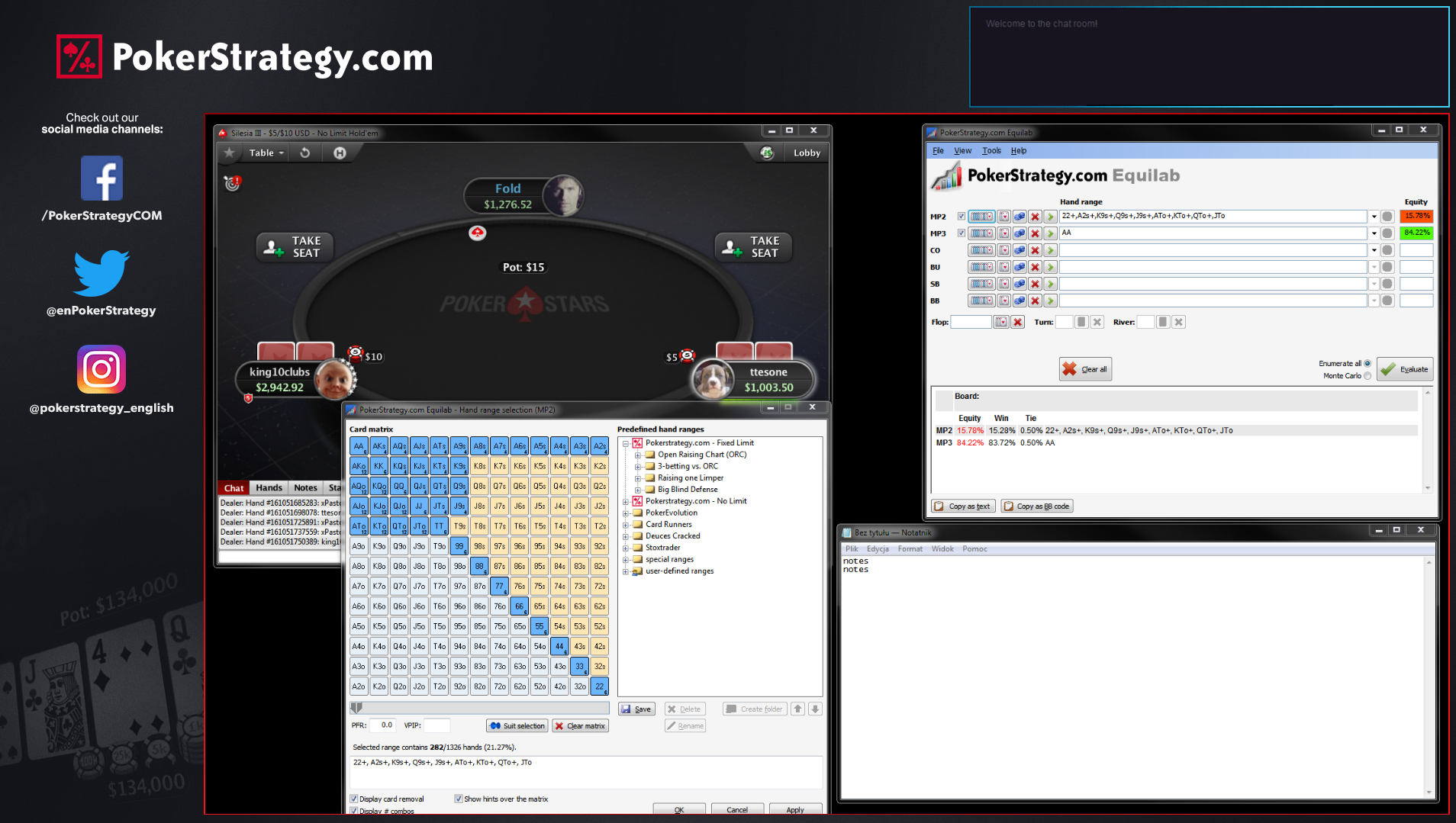
Twitch_2_Tables_Static (two tables live play)
Spoiler

Twitch_4_Tables_Static (four tables live play)
Spoiler
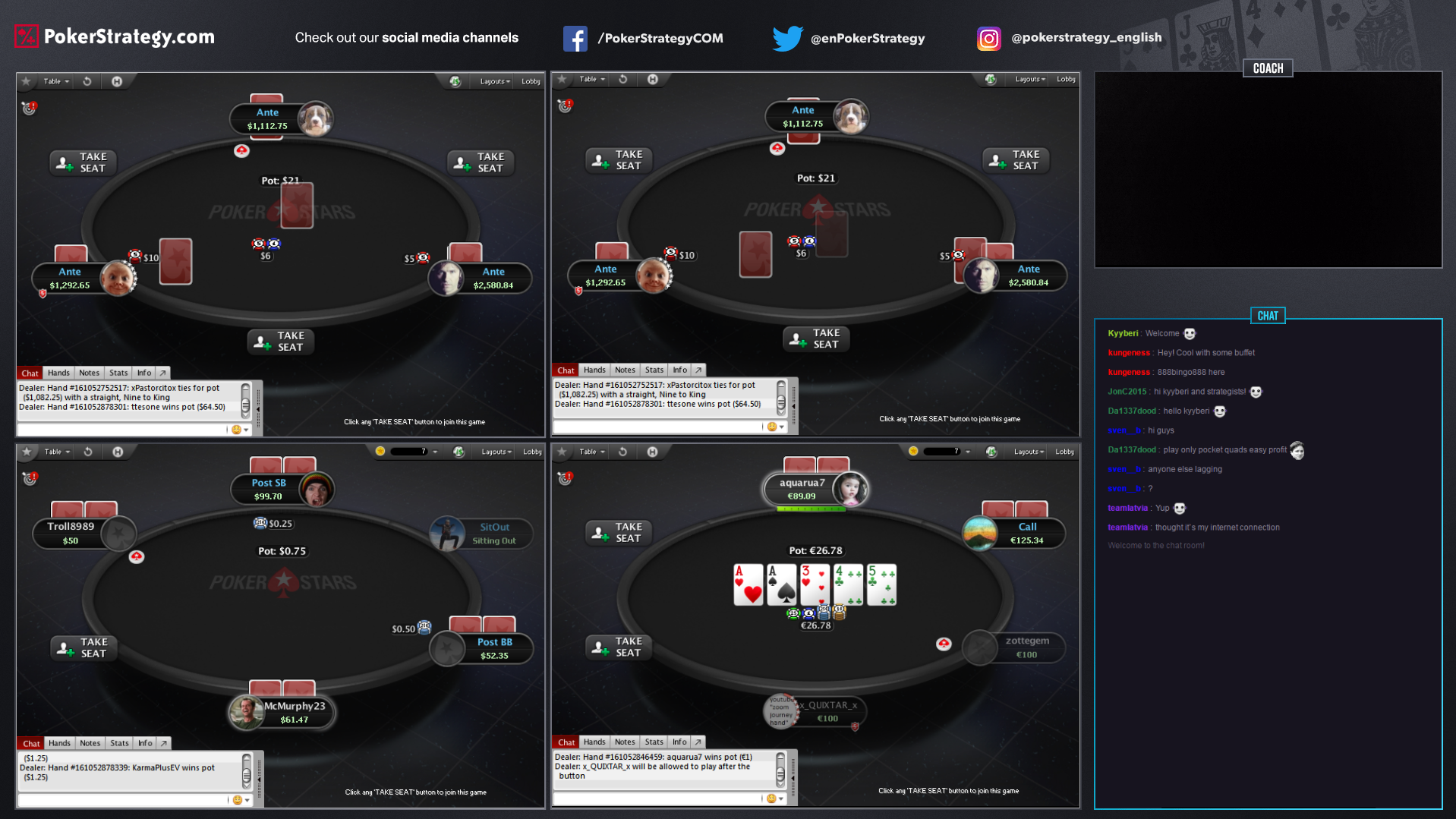
Twitch_6_Tables_Static (six tables live play)
Spoiler

Twitch_6_Tables_SceneSwitcher (six tables live play, scenes changes automatically, see video below)
Spoiler

4. How to use and setup the Auto Scene Switcher (feature only for advanced streamers)
What this tool does, it intercepts selected windows which are connected to scenes, and automatically changes scenes when selected window is active (when you click on it). There are a few advantages of using this feature, as you can probably imagine, the main one is that the focus is on the window you are actually focusing your action on, and it changes automatically. The biggest disadvantage of using this tool is that you always have to manually select a window and connect it with a scene, so for example if you play a tournament, and you get eliminated and replace it on your monitor, you have to open the Auto Scene Switcher and connect the new window with proper scene.
5. Final words
It might be a challenge for one, for others everything described here is already known, and they will have no issues. Keep in mind however, that it is impossible to make a unified setup for every single PC configuration. There might be some things to adjust like windows positioning or size, but for anyone who dealt with OBS before, this shouldn't be a problem. Due to my limitations, this hasn't been tested on Windows 10 yet, but OBS Studio developers are confident that there shouldn't be many issues with the software and new Windows OS. And of course, if you need any assistance, you should contact your PokerSchool Coordinator.


