Skip to forum
Notifications
Clear all

OBS doesn't work with Aurora

17 Posts
4 Users
0 Reactions
2,194 Views
LahtiPelican
Joined: 27.04.2013

Hello all!

As I wrote in my blog, I started to stream a few weeks ago. Since my PC is old and slow, I disabled Aurora for the streams. However PokerStars doesn't allow that since the last update and since then OBS can't record or stream my tables if I add them as a window capture resource.

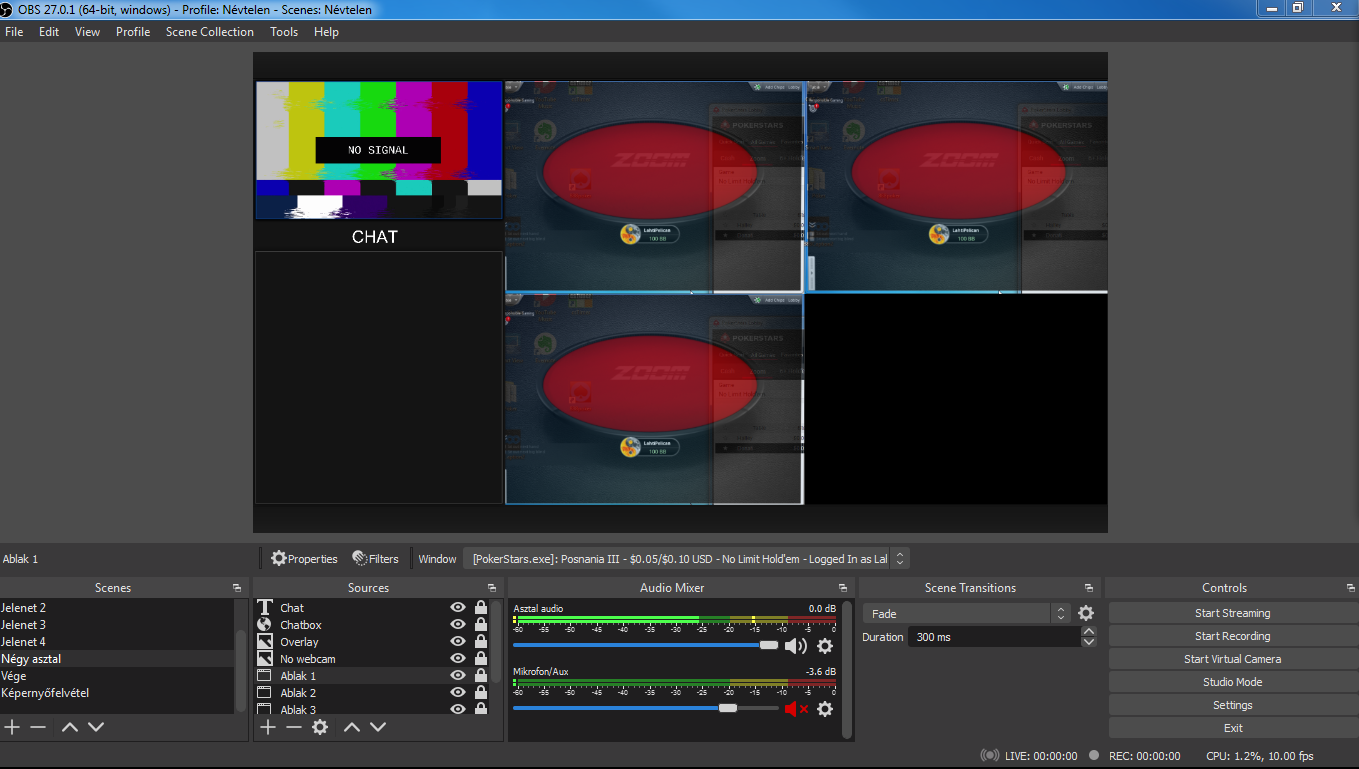
It looks like this:

Basically it shows the first frame it can capture after I open the table. Only thing OBS can record is my mouse movement, but it only shows a steady picture of the table behind it.

Did anyone had the same problem and know a solution for it?


Reply
Quote
16 replies
Super Moderator
VorpalF2F
Joined: 02.09.2010

Hi LahtiPelican,
Are you using Streamlabs OBS or OBS Studio?
There were problems with earlier versions of OBS Studio regarding window capture and some graphics cards.
Here is the topic thread on the OBS forum about that:
https://obsproject.com/forum/threads/laptop-black-screen-when-capturing-read-here-first.5965/

If you're not on the most recent version of OBS Studio, I would start by updating to the most recent, because I think they've fixed it.

I know nothing about Streamlabs OBS as I've never used it.

I don't use window capture when streaming -- I used display capture.
I have a separate scene for each table, and there are no problems with aurora


Reply
Quote
LahtiPelican
Joined: 27.04.2013

Originally posted by VorpalF2F
Hi LahtiPelican,
Are you using Streamlabs OBS or OBS Studio?
There were problems with earlier versions of OBS Studio regarding window capture and some graphics cards.
Here is the topic thread on the OBS forum about that:
https://obsproject.com/forum/threads/laptop-black-screen-when-capturing-read-here-first.5965/

If you're not on the most recent version of OBS Studio, I would start by updating to the most recent, because I think they've fixed it.

I know nothing about Streamlabs OBS as I've never used it.

I don't use window capture when streaming -- I used display capture.
I have a separate scene for each table, and there are no problems with aurora

I use OBS Studio and I checked for updates (I forgot to mention this), it is the latest version.

I wrote into OBS forum today, I hope someone can help there. I don't want to use display capture, because I don't want my HUD to be seen on streams. I could only do that with window capture and game capture, but I can only add one game capture to a scene.

Thanks for the link to that OBS forum thread! I have an old PC with Nvidia GPU, but unfortunately I can't change the setting they suggested. I am looking for the reason why.

Also I will write to PokerStars support as well, because OBS window capture works fine with other poker clients.


Reply
Quote
LahtiPelican
Joined: 27.04.2013

OBS reinstalled, nothing changed and Streamlabs OBS has the same issue for me


Reply
Quote
LahtiPelican
Joined: 27.04.2013

After a lot of reading, problem solved. I changed PokerStars openGlSetting from 4 to 1 and everything is okay. I don't know hőw, I don't know why, but it's worked.


Reply
Quote
kacsa1st
Joined: 09.02.2007

Originally posted by LahtiPelican
After a lot of reading, problem solved. I changed PokerStars openGlSetting from 4 to 1 and everything is okay. I don't know hőw, I don't know why, but it's worked.

hi!

now the openGL uses your CPU instead of the GPU. i bet in your old PC the GPU is kinda shit that's why it couldn't handle things well.
in the task manager you can compare these openGL settings how much load each put on your sources if u'd like.
just to see how the differences between the 2 settings in % on CPU and GPU.

aurora tends to put a ton of load on CPUs (that's why tons of ppl experiencing lag with weak PCs) but we can share the load on GPU with the openGLsetting 4.
in your case i bet the streaming with OBS puts a lot of load on your GPU and it can not handle both at the same time (PS+streaming). just my guess cos i've never streamed hence didn't use OBS :)

GL at the tables and with the streaming!

edit:

i still use the old engine on ps.eu. the trick is never update untill it is inevitable (the reason is don't fix if it ain't broken).
to do this u should change the PS icon path to point on pokerstas.exe instead of pokerstarsautoupdate.exe.
with this you can avoid having no HUD after an update (which had happened several times back in the days especially on zoom tables and had to wait till the tracker creator guys updated their software too to work again)

when sg really important/big update comes it will warn you and will run the update so no need to worry using this method ;)


Reply
Quote
LahtiPelican
Joined: 27.04.2013

The problem is getting annoying, because my solution only helped once. After restarting my PC, it is the same as it was before...

Originally posted by kacsa1st
hi!

now the openGL uses your CPU instead of the GPU. i bet in your old PC the GPU is kinda shit that's why it couldn't handle things well.
in the task manager you can compare these openGL settings how much load each put on your sources if u'd like.
just to see how the differences between the 2 settings in % on CPU and GPU.

aurora tends to put a ton of load on CPUs (that's why tons of ppl experiencing lag with weak PCs) but we can share the load on GPU with the openGLsetting 4.
in your case i bet the streaming with OBS puts a lot of load on your GPU and it can not handle both at the same time (PS+streaming). just my guess cos i've never streamed hence didn't use OBS :)

GL at the tables and with the streaming!

edit:

i still use the old engine on ps.eu. the trick is never update untill it is inevitable (the reason is don't fix if it ain't broken).
to do this u should change the PS icon path to point on pokerstas.exe instead of pokerstarsautoupdate.exe.
with this you can avoid having no HUD after an update (which had happened several times back in the days especially on zoom tables and had to wait till the tracker creator guys updated their software too to work again)

when sg really important/big update comes it will warn you and will run the update so no need to worry using this method ;)

You are right, my notebook is old as hell. However at least it has a dedicated GPU.

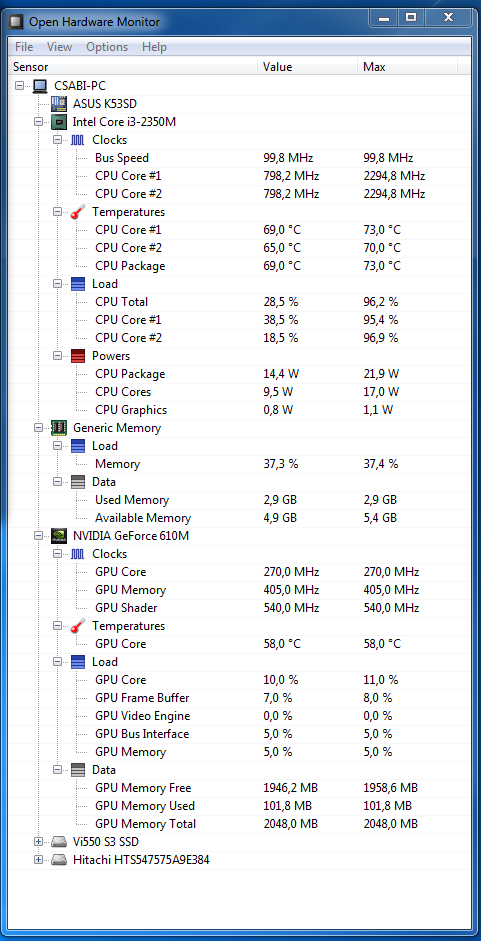
Also I don't think the heavy load of streaming is my problem. I tried to just open OBS and PokerStars and the issue is the same without even starting the stream. The preview of the stream is only the first frame of the table and doesn't refresh.
It is far from maximum load the PC can handle.

OBS works perfectly with other poker rooms (888, Unibet), that's why I thought the problem is with PokerStars settings/latest version. As far as I know, it isn't allowed to stream Unibet action, and TBH PokerStars will be my main room anyway, because I have good rakeback ATM. So if I have to choose between streaming and PokerStars, I choose PokerStars.

I bet it would be easier to solve the problem with Windows 10 installed (I use Windows 7, because I didn't find proper drivers to Win 10 and I hated to use the notebook without multitouch gestures).

I guess I can't just install PokerStars previous version now, if I updated once.

Egyébként meg köszi a segítséget! :f_drink:


Reply
Quote
LahtiPelican
Joined: 27.04.2013

I chaged back the opengl to 1 and OBS works again. It seems like the setting doesn't matter, the key is to cahange it before streaming...

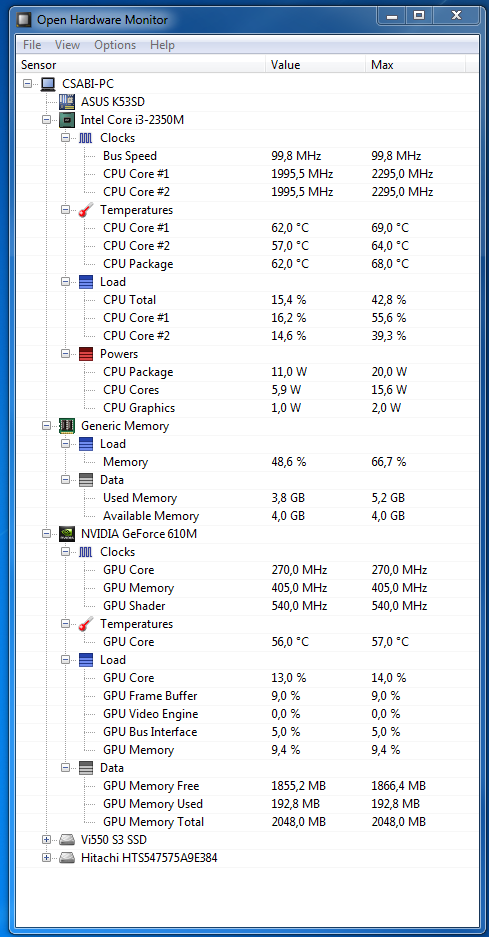
BTW here is the same load with opengl 1

Looks like the 4 will be better, if I wouldn't stream.


Reply
Quote
kacsa1st
Joined: 09.02.2007

^^that's what i am talking about!!!

-openGL set to 4 puts (share) load on GPU hence PS works smoother (no lags cos the load is smaller on CPU)
-openGL set to 1 makes the aorora only use the CPU and high load can cause lags while your GPU is not used by PS so it can handle the OBS

edit:
i bet u still not changed to pokerstars.exe to run the software hence the pokersarsautoupdate.exe still checks and overwrites yout ini file so the openGL setting goes back to 4 every time you start the client ;)


Reply
Quote
LahtiPelican
Joined: 27.04.2013

Originally posted by kacsa1st
^^that's what i am talking about!!!

-openGL set to 4 puts (share) load on GPU hence PS works smoother (no lags cos the load is smaller on CPU)
-openGL set to 1 makes the aorora only use the CPU and high load can cause lags while your GPU is not used by PS so it can handle the OBS

edit:
i bet u still not changed to pokerstars.exe to run the software hence the pokersarsautoupdate.exe still checks and overwrites yout ini file so the openGL setting goes back to 4 every time you start the client ;)

You are right again, I didn't change the to pokerstars.exe . Unfortunately with opengl 1 it is too laggy to play.

In the OBS forum thread linked before I found the following:

If you are using a laptop, you may run into capture issues (black screen). This is because most laptops have more than one graphics adapter. Why do they have more than one graphics adapter? Because one is used for saving power (rendering your desktop / windows), and the other is used for performance (gaming). This is done to minimize power usage on the laptop, as laptops are designed to run on batteries.

Because of this, it can often cause capture issues. Your laptop may be drawing one image to the power saving GPU, and another to the performance GPU. However, in order for OBS to capture , OBS itself must be running on the same GPU as the image you wish to capture. If OBS is running on adapter A, and an image is being drawn on adapter B, you will get a black screen when trying to capture it.

If I understand correctly, this is what the issue was with my setup. I can solve it with openGL set to 1, than PokerStars is laggy. Or I can set OBS to use my GPU instead of CPU. Unfortunately somehow I can't change the settings in Nvidia control panel, but I will solve that too.

The best solution is to buy a newer PC which can handle all of the settings


Reply
Quote
kacsa1st
Joined: 09.02.2007

Originally posted by LahtiPelican
Or I can set OBS to use my GPU instead of CPU. Unfortunately somehow I can't change the settings in Nvidia control panel, but I will solve that too.

i guess this should be the solution according to the quote u posted above. it is strange if u couldn't change the setting in the Nvidia panel. don't u see the OBS in the dropdown menu or it does not show the GeForce610M when choosing the OBS in the list?
however i don't know the solution of this BS in Nvidia panel :(

i hope you can find the trick somewhere on the internet.


Reply
Quote
LahtiPelican
Joined: 27.04.2013

OBS is there, but after I change Apply global settings to High Performance NVIDIA Processor (as they suggested in the OBS thread) and click apply the following mesage appeares:

"Acces denied. Failed to apply selected settings to your system." It isn't an OBS thing, the same error appears when I change the setting for any software.


Reply
Quote
kacsa1st
Joined: 09.02.2007

Originally posted by LahtiPelican
It isn't an OBS thing, the same error appears when I change the setting for any software.

hmm.. strange 4 sure. do you use the latest version of your video driver? i doubt it is the problem but you never know.
i am thinking of what happens when running the Nvidia control panel in administrator mode.
but i can not find the way to do it :facepalm:

edit:

check this out may help:


Reply
Quote
LahtiPelican
Joined: 27.04.2013

Originally posted by kacsa1st

Originally posted by LahtiPelican
It isn't an OBS thing, the same error appears when I change the setting for any software.

hmm.. strange 4 sure. do you use the latest version of your video driver? i doubt it is the problem but you never know.
i am thinking of what happens when running the Nvidia control panel in administrator mode.
but i can not find the way to do it :facepalm:

The way to open in administrator mode is to open the containing folder (C/program files etc.) and than right click and run as administrator.

That doesn't help, so I downloaded the latest dirver manually from Nvidia's website (otherwise it showed that I have the latest). I could change OBS settings in Nvidia control panel, but the issue was the same.

It seems like the only solution is to run pokerstars with Opengl set to 1. Thank you for helping me in the troubleshooting!


Reply
Quote
kacsa1st
Joined: 09.02.2007

Originally posted by LahtiPelican
I could change OBS settings in Nvidia control panel, but the issue was the same.

so both OBS and PS was running on the GPU and still not working for the stream?!
then fck it!! sorry 4 being useless :f_drink:


Reply
Quote
Super Moderator
VorpalF2F
Joined: 02.09.2010

Originally posted by LahtiPelican
It seems like the only solution is to run pokerstars with Opengl set to 1. Thank you for helping me in the troubleshooting!

Well at least it is working.

In my user.ini file, I see:

[OpenGl]
AlwaysSWReset=3
openGlExitCode=0
openGlSetting=4

I'm curious about the "AlwaysSWReset" item.
Perhaps changing this would make it so PokerStars always opened with the same setting.
But I wouldn't mess with it without contacting PokerStars support.

If you want to run PokerStars (or any other program) with elevated privileges, find the shortcut that starts it, then right-click the shortcut, choose "properties" then on the shortcut tab click "advanced" then "run as administrator"
If you are already an administrator, the job is done, if not, you'll need to take a couple of further steps. I can't say for sure what they are, since I'm an admin on this machine.


Reply
Quote
PokerRoulette
Joined: 05.01.2021

I am in the same boat, again. been dealing with this for the past few days. Guess I may have to stick with the current solution for now.


Reply
Quote